

Why Use RFT?
RFT is designed for teams who want to:- Improve accuracy: Train models that perform better on your specific domain and use cases
- Reduce costs: Use smaller, fine-tuned models that outperform larger general-purpose models
- Customize behavior: Create models that follow your application’s patterns and requirements
- Leverage your data: Turn your production traces into training data automatically
Prerequisites
Before starting an RFT training job, ensure you have:- An active Quotient account
- Trace data from your application using the Quotient Python SDK
- Sufficient traces in your chosen app and environment (minimum of 50 traces required)
Creating a Training Job
Navigate to RFT
Go to the Steering section in the sidebar and click on RFT to access the training interface.
Select Your App
Choose the application you want to train a model for from the App dropdown. This determines which trace data will be used for training.
Select Environment
Select the environment (e.g.,
production, staging, dev) from which to extract training data. We recommend using production data for the best results.Choose a Base Model
Select the foundation model to fine-tune. Available options include:
- Qwen 3 14B - A powerful open-source model ideal for complex reasoning tasks
- OpenAI o4-mini - A fast, efficient model from OpenAI
Training Workflow
Once you start a training job, it progresses through several stages:1. Data Extraction
The system extracts and prepares training data from your traces. During this phase:- All traces for the selected app and environment are collected
- Our system filters and augments your traces to create high-quality training examples
- A baseline performance metric is calculated
Pending Extraction- Preparing to extract dataExtracting Data- Actively processing your traces
2. Training
After data extraction, the actual model training begins:- The base model is fine-tuned using reinforcement learning techniques
- The model learns from your traced interactions to better match your use case
- Progress is tracked and displayed as a percentage
Training in Progress
3. Completion
When training finishes:- Final performance metrics are calculated
- Your fine-tuned model is deployed and ready to use
- An inference endpoint is generated for API access
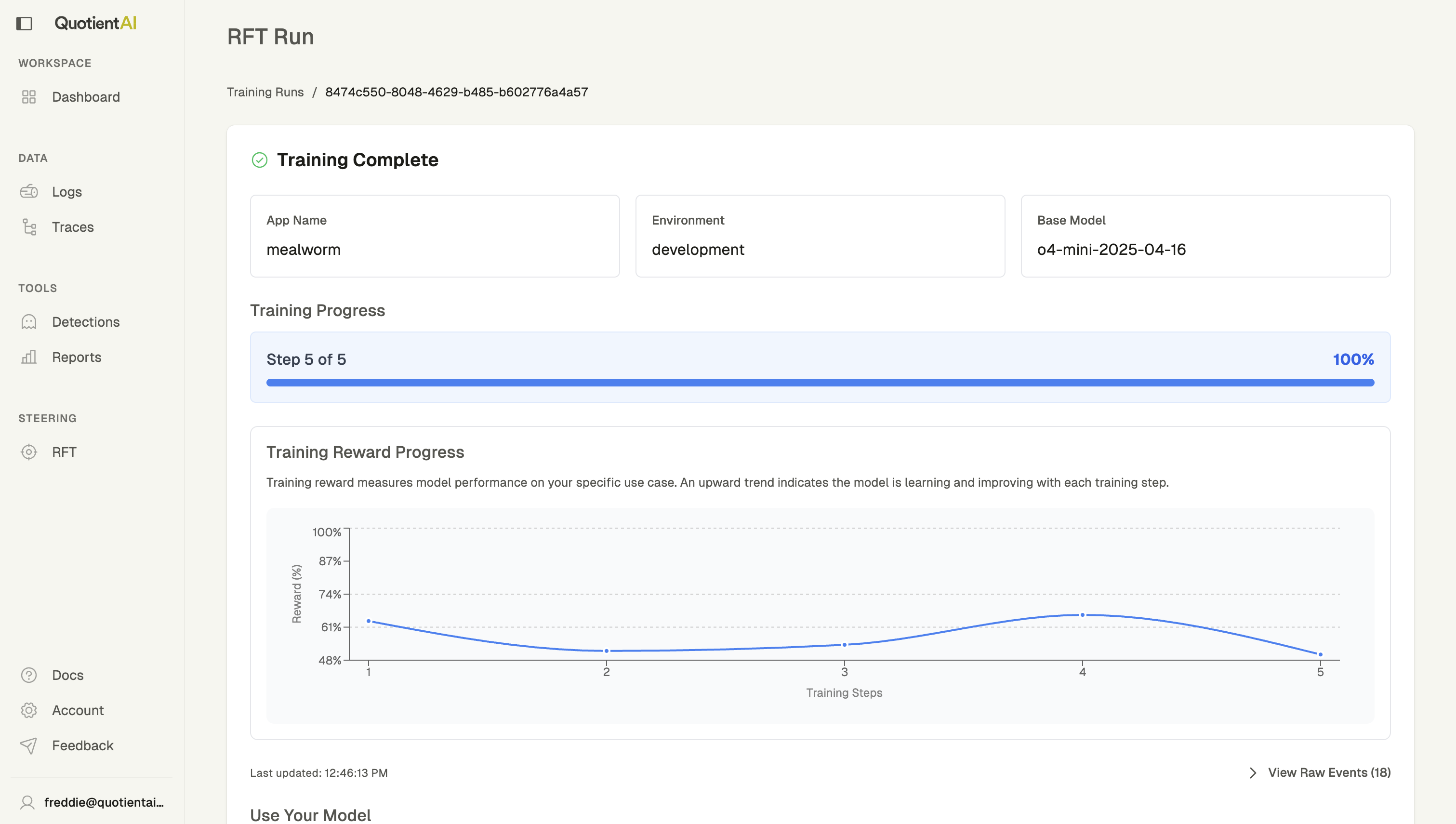
Training Complete
Monitoring Your Training
Progress Tracking
The training interface provides real-time updates on your job:- Progress bar: Shows completion percentage (0-100%)
- Status badge: Displays current training stage
- Auto-refresh: Updates automatically every few seconds while training
Training Metrics
For supported model types, you can view detailed training metrics:- Training reward: Shows how the model’s performance improves over training steps
- Step progress: Displays the current training step out of total steps
- Performance graph: Visualizes reward progression throughout training
Understanding the Training Graph
Understanding the Training Graph
The training graph shows how your model improves over time. A healthy training run typically shows:
- Upward trend: Reward increases as training progresses
- Stabilization: Metrics level off as the model converges
- Consistent improvement: Steady gains without major fluctuations
Using Your Fine-Tuned Model
Once training is complete, you can use your custom model via the inference endpoint provided.Get Your Model Endpoint
After training completes, your model’s inference endpoint is displayed on the training run page. Copy this endpoint to use in your application.Make Inference Calls
Your fine-tuned model is compatible with the OpenAI API format. You can use either the standard OpenAI client or the OpenAI Agents SDK.OpenAI Client
Use the OpenAI Python client with your custom model endpoint:openai_client.py
OpenAI Agents SDK
You can also use the OpenAI Agents SDK for more advanced agent workflows:openai_agents.py
Performance Comparison
After training completes, the interface displays:- Before Training: Baseline performance on your test data
- After Training: Performance of your fine-tuned model
- Improvement: The percentage improvement achieved through fine-tuning
Training Run History
All your training runs are saved and accessible from the main RFT page. The training run table shows:| Column | Description |
|---|---|
| App Name | The application the model was trained for |
| Environment | The environment used for training data |
| Base Model | The foundation model that was fine-tuned |
| Status | Current status of the training job |
| Started At | When the training job was created |
| Completed | When training finished (if applicable) |
| Improvement | Performance improvement percentage |
Best Practices
More Data, Better Results
Send all your traces to Quotient. Our system automatically filters and augments your data to create high-quality training examples.
Use Production Data
Train on production environment data when possible, as it best represents real-world usage patterns.
Monitor Progress
Keep an eye on training metrics to ensure your model is learning effectively.
Test Before Deploy
Compare before/after performance metrics and test your model thoroughly before production use.
Troubleshooting
Training failed during data extraction
Training failed during data extraction
This usually indicates insufficient trace data. Ensure you have:
- At least 50 traces for the selected app and environment
- Traces that include user queries and model outputs
Training failed during model training
Training failed during model training
If training fails after data extraction:
- Check if the error message provides specific guidance
- Ensure your data doesn’t contain problematic content
- Try again with a different base model
Low improvement after training
Low improvement after training
If your model shows minimal improvement:
- Ensure your traces contain diverse examples of your desired use case
- Consider collecting more traces before retraining
- Try a different base model that may be better suited to your use case
Model not behaving as expected
Model not behaving as expected
If your fine-tuned model doesn’t match expectations:
- Verify you’re using the correct inference endpoint
- Review your training data for any patterns that might cause unexpected behavior
- Test with prompts similar to your traced interactions
- Consider additional training with more targeted examples
Getting Help
If you encounter issues or have questions about RFT:- Join our Discord community for peer support
- Contact support@quotientai.co for technical assistance